

CyberUpdates365 Threat Intelligence Desk: This analysis is based on primary reporting and hands-on testing conducted by Windows Latest and security researcher Xeno Panther. The executable in question is officially signed by Microsoft Corporation.
By Uday Patil, Cybersecurity Analyst
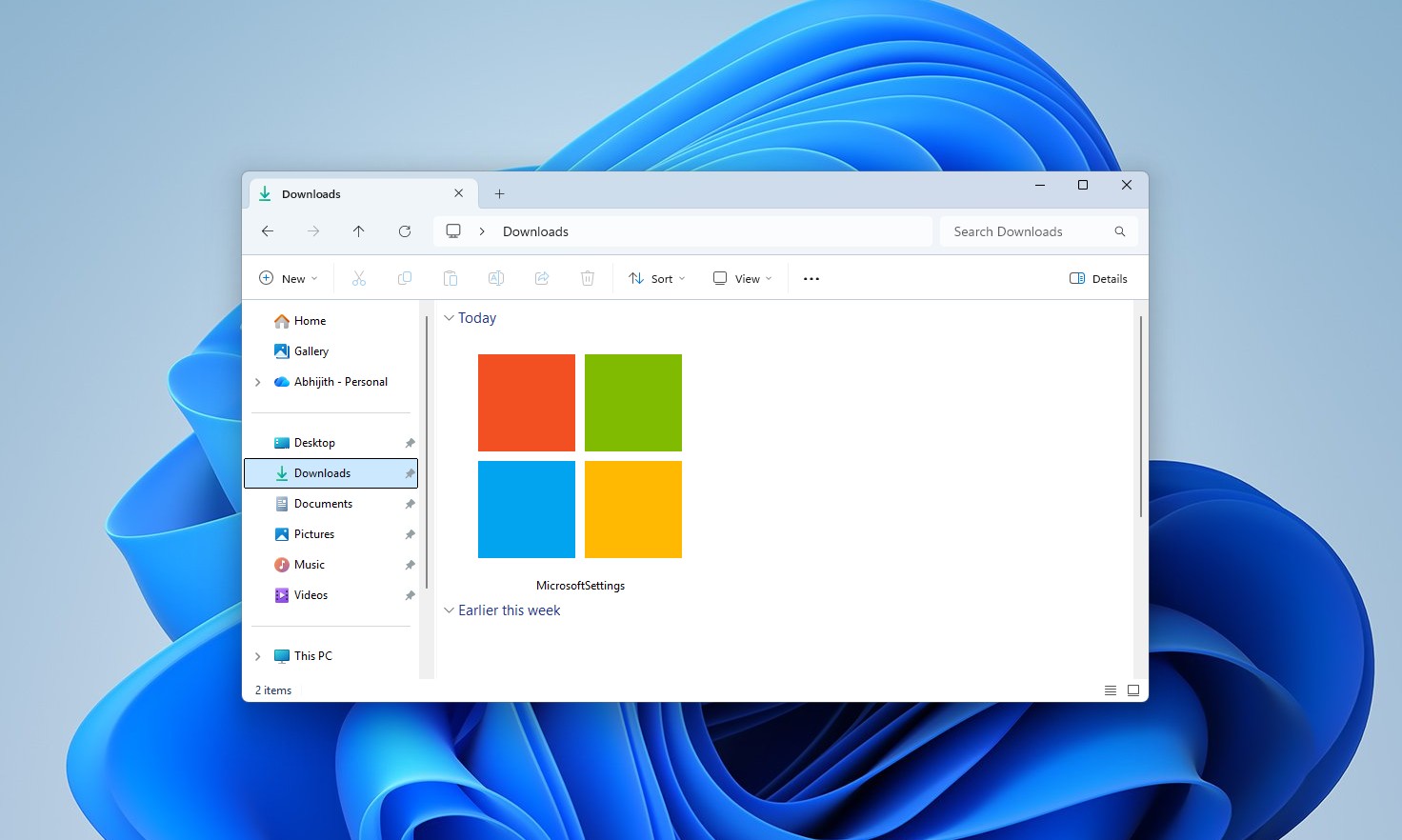
Check your Windows 11 Downloads folder. Microsoft has deployed a standalone application whose highly specific purpose is to prompt users into switching to Bing—even if you have already set Google Chrome, Mozilla Firefox, or Brave as your default browser.
Officially titled “Microsoft Recommended Search Settings,” this 22.2 MB installer is deceptively named MicrosoftSettings.exe. While it mimics a standard Windows system update (much like the official patches that recently caused the Windows 11 August Update Error and the dreaded KB5094126 BitLocker Loop), its real job is entirely different. It exists solely to prompt users to install a Bing extension, switch their search engine, and funnel them into the Microsoft Rewards program.
The Anatomy of MicrosoftSettings.exe
According to deep-dive findings first reported by Windows Latest, a software tester named Xeno Panther discovered this executable hosted directly on Microsoft’s official download servers, bypassing the standard Windows Update channels.
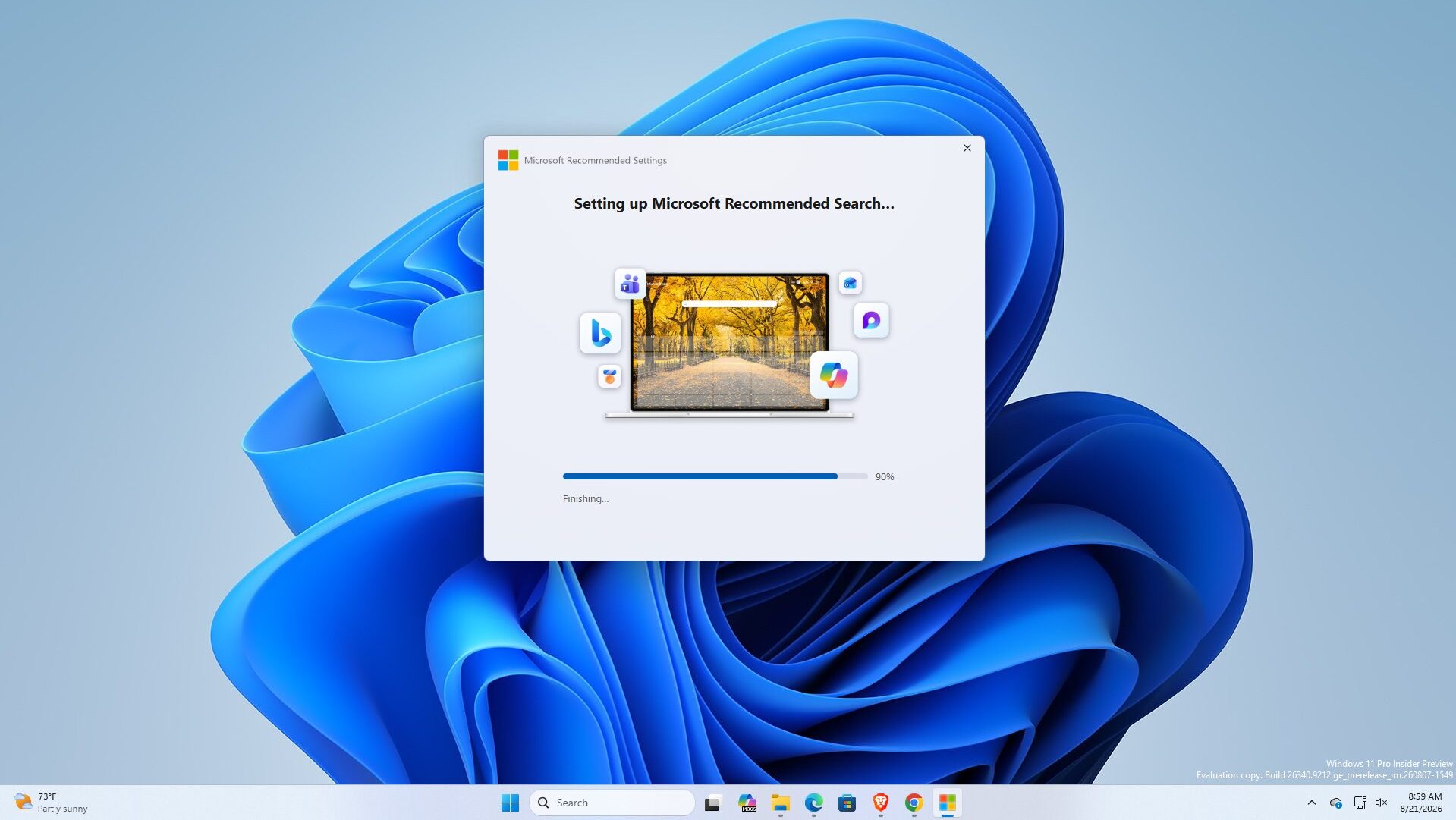
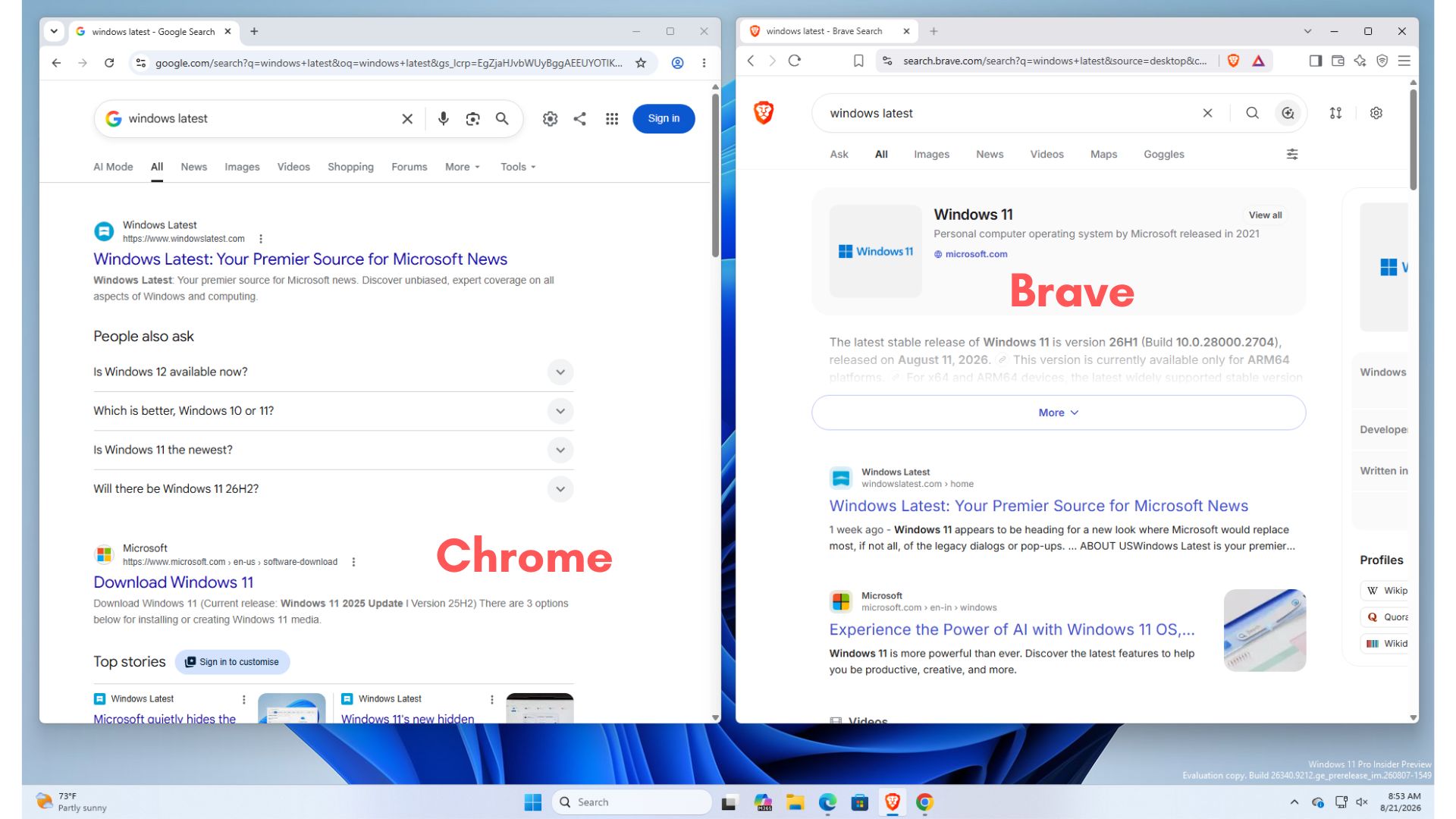
During independent hands-on testing on a PC actively using Google in Chrome, running the application produced a polished setup screen. The crucial detail? The option to switch your search engine to Bing is pre-selected to “Yes.”
If a user blindly clicks “Accept and continue,” the app executes a brief setup and redirects the user to the Microsoft Rewards portal to hook them with points.
Browser Security Alarms: The Consent Dilemma
The software being installed is the legitimate Microsoft Bing Homepage & Search browser add-on. However, deploying it via a Windows-native .exe file has raised eyebrows across the tech community.
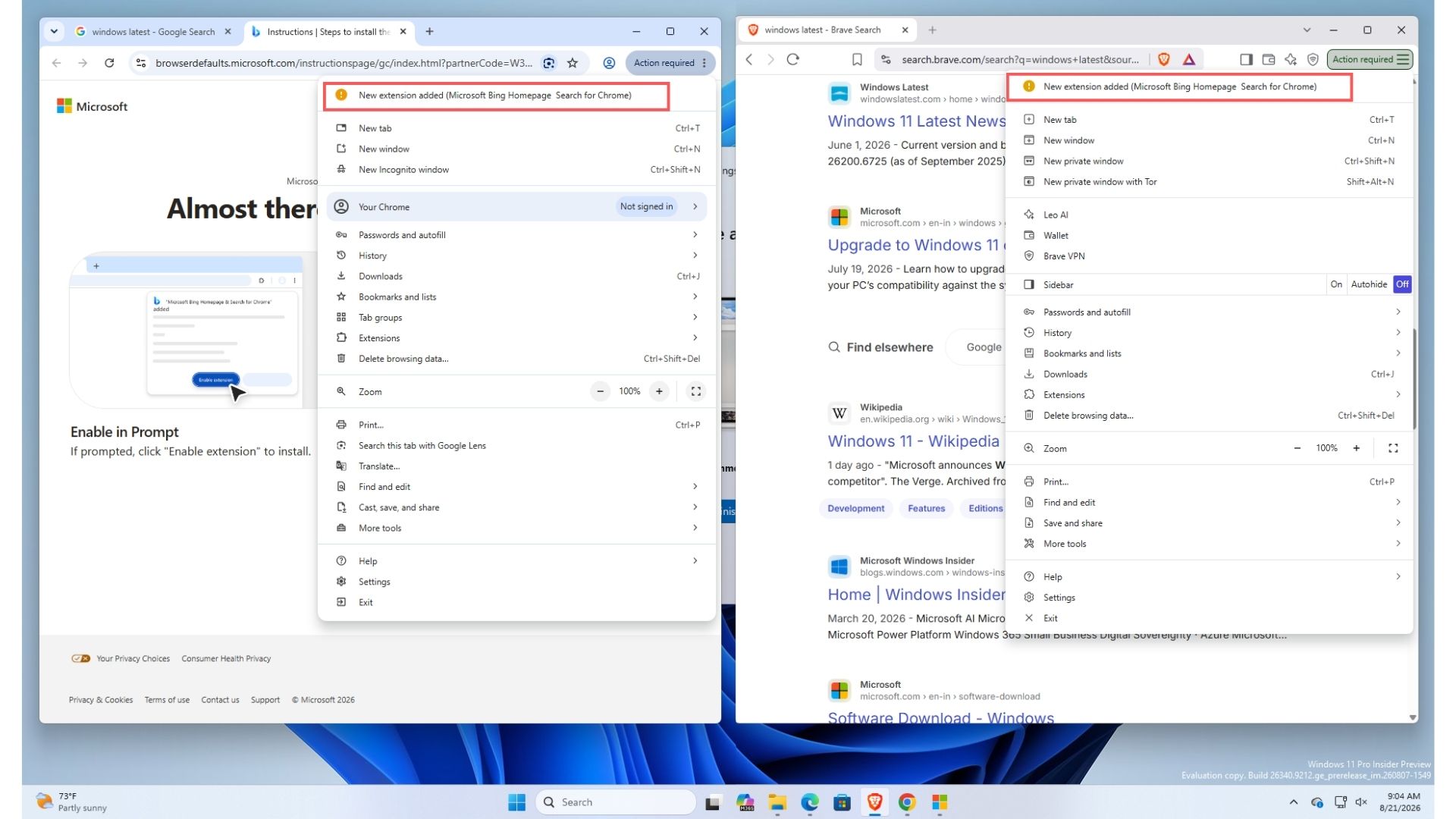
It is important to clarify that this is not a forced, zero-click installation. When MicrosoftSettings.exe attempts to add the extension, modern browsers like Google Chrome and Brave interrupt the process with severe security warnings.
The browsers alert the user that the Bing extension is requesting extensive permissions, including:
- Read and change all data on websites you visit.
- Display notifications.
- Replace the homepage, start page, and default search engine settings with bing.com.
From a technical standpoint, these are the exact same powerful browser-level hooks abused by cybercriminals. We recently documented these precise permissions being exploited in the SearchJack Campaign and the Fake Perplexity AI Extension attacks to steal session data.
Official Tool vs. Search Hijacker: Spot the Difference
While Microsoft is a trusted entity and this is absolutely not a malicious implant, the line between aggressive marketing and unwanted software can feel blurry for casual users.
| Feature / Tactic | MicrosoftSettings.exe | Malicious Search Hijackers |
|---|---|---|
| File Naming Convention | Mimics system tools (MicrosoftSettings.exe). | Mimics system tools (svchost.exe, update.exe). |
| User Consent | Requires user click (“Accept”); “Yes” is pre-selected. | Hidden or forced zero-click consent mechanisms. |
| Browser Safeguards | Triggers native Chrome/Brave security warnings. | Attempts to bypass or disable browser warnings. |
| Ultimate Goal | Boost corporate market share & Microsoft Rewards. | Data theft & Ad fraud redirection. |
Advanced Security: How to Block Aggressive Extensions
At CyberUpdates365, we prioritize giving IT administrators actionable solutions. If you want to block unapproved browser extensions (including Microsoft’s Bing extension) from being installed by end-users, follow these mitigation steps:
- Use Chrome Enterprise Policies: You can block specific extensions using Group Policy (GPO). Navigate to
Administrative Templates > Google > Google Chrome > Extensionsand configure the “ExtensionInstallBlocklist” policy. Adding a*blocks all unapproved extensions. - Configure AppLocker: To prevent the
MicrosoftSettings.exefile from executing, use Windows AppLocker to block executable files containing “MicrosoftSettings” originating from standard user directories. - Enable “Enhanced Protection”: Ensure that your Chrome or Brave browsers have “Enhanced Safe Browsing” enabled, which actively flags extensions that attempt to rewrite homepage data.
The Verdict: What Should You Do?
Microsoft is leveraging its operating system dominance to aggressively market Bing, relying on “dark patterns” like pre-selected checkboxes and official-sounding filenames to catch users off guard. Unless you explicitly want to switch your entire browsing ecosystem to Bing and MSN, you should ignore and delete MicrosoftSettings.exe if you find it in your system.
Frequently Asked Questions (FAQ)
Is MicrosoftSettings.exe a virus or malware?
No, it is an officially signed application created by Microsoft Corporation. It is a marketing tool designed to encourage users to switch their default search engine to Bing, not a malicious virus.
Does this app forcefully change my settings without permission?
No. You must click “Accept and continue” within the app, and modern browsers like Chrome will still prompt you with a security warning before the extension is fully enabled.
How do I remove the Bing Search extension if I installed it?
Open your browser, go to Settings > Extensions, locate the “Microsoft Bing Homepage & Search” extension, and click Remove. You can then reset your default search engine back to your preferred choice.
Found this article interesting? Follow us on Twitter and LinkedIn to read more exclusive content we post.
 Follow on Google