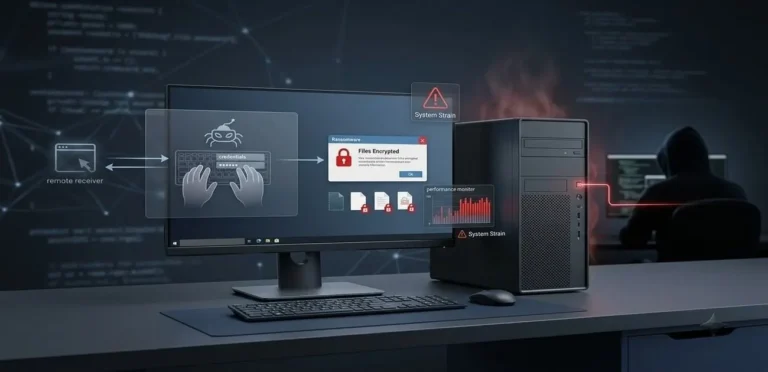
Discovering that your email address or password has turned up in a data breach is unsettling, but it is also one of the most fixable security problems you can face — provided you handle it properly. Criminals rarely need to hack you directly. Instead, they collect login details spilled by breached websites, bundle them into enormous lists, and run automated software that tries those combinations against email providers, banks, shops and social networks. If you have ever reused a password, one old breach can open many doors.
The encouraging news is that you can find out exactly what is circulating about you, free of charge, using tools run by reputable organisations. This guide walks you through checking your email address and your passwords step by step, explains how to interpret the results, and gives you a clear response plan for the moment you get a hit. You will also find a printable-style checklist and answers to the questions our readers ask most often.
What does it mean to be “in a data breach”?
A data breach happens when information held by a service — a shop, a forum, an app, a government department — is copied or stolen by attackers. If your email address appears in a breach-checking tool, it means that address was present in a dataset from such an incident. It does not necessarily mean someone has broken into your accounts; it means the raw material for an attack on your accounts is in circulation.
There are a few different ways your details can end up exposed. The classic case is a single service being breached and its user database stolen. Another is a combination list, where credentials from many breaches are merged into one file. A third, increasingly common case is stealer-log compilations: malware running on victims’ computers quietly harvests saved passwords and session cookies, and those harvests are later aggregated and traded. We examined one such aggregation in our analysis of the June 2026 stealer-logs mega-leak, which shows why checking matters even if you do not recall the original breach.
One important caveat: a clean result only means your address was not found in the breaches a tool knows about. New incidents surface all the time, so treat checking as a habit rather than a one-off test. Our data breach coverage guide explains how we verify breach reports and why some widely shared claims should be treated with caution.
Before you start: check safely
Breach checking involves typing your email address into a website, so a little caution up front goes a long way:
- Use only the official tools linked in this guide. Never type a real password into a random “breach checker” site you found through search results or social media — some are phishing pages designed to harvest exactly what you enter.
- Type the address of each tool yourself rather than clicking links in emails or messages that claim your data has been breached and invite you to “check here”. Breach-notification phishing is a classic lure.
- Checking is free. You do not need to pay, install software or hand over payment details to check an email address or password. Any tool that demands those is one to avoid.
Step 1 — Check your email address with Have I Been Pwned
Have I Been Pwned, created by security researcher Troy Hunt, is the best-known independent breach-checking service. It holds a searchable database of breaches and lets anyone check an address without creating an account.
- Go to haveibeenpwned.com by typing the address into your browser.
- Enter the email address you want to check in the search box on the homepage and select Check.
- Read the result banner (explained in Step 2 below), then scroll down to see the list of breaches your address appears in, if any.
- Repeat the check for every email address you own — old addresses from student days or previous jobs are breached just as often as current ones, and attackers do not care how long ago you stopped using an inbox.
- Optional but recommended: use the Notify me feature to receive a free email alert if your address appears in a future breach. You will need to verify the address by clicking a confirmation link.
Step 2 — Read your result properly
The result page is straightforward once you know what each element means.
If you see a green “Good news — no pwnage found” message, your address was not found in any breach currently in the database. That is genuinely good news, but it is not a guarantee of safety: it covers known breaches only. Keep using unique passwords and switch on two-factor authentication (more on that in Step 5 of the response plan).
If you see a red “Oh no — pwned!” message, your address appeared in one or more breaches, listed below the banner. Click each breach name to open its detail page, which tells you:
- The breach date — when the incident happened, which may be years before it became public.
- Compromised data — the types of information exposed, such as email addresses, passwords, names, phone numbers or dates of birth. This is the single most important field: a breach that exposed only email addresses demands a different response from one that exposed passwords.
- A description of the incident — what happened and how the data surfaced.
You may also notice labels such as verified, unverified or spam list. Verified breaches have been confirmed as legitimate incidents; unverified ones are plausible but not fully confirmed; spam lists are bulk email collections rather than true breaches. Treat verified password breaches as the highest priority, but do not ignore the rest — even an email-only exposure feeds phishing campaigns aimed at you.
Step 3 — Cross-check with Mozilla Monitor
A second opinion costs nothing and sometimes surfaces exposures the first check missed, because each service curates its breach data slightly differently.
- Go to monitor.mozilla.org, Mozilla’s free breach-monitoring service.
- Enter your email address and select Get free scan.
- Review the exposures it finds. Mozilla Monitor walks you through recommended steps to resolve each one, which is particularly helpful if this is your first time dealing with a breach result.
- If you want ongoing protection, you can sign up for continuous monitoring so you are alerted automatically when new breaches affecting you are added.
Step 4 — Check the passwords your browser has saved
Most people reuse passwords without realising how widely they have done it. Your browser’s built-in password manager can audit your saved logins for you.
- If you use Chrome or sync passwords with your Google Account, open Google Password Manager and run Password Checkup. It flags passwords that have appeared in known breaches, passwords you have reused across sites, and weak passwords.
- Work through the flagged entries one by one, starting with email, banking and social media accounts — the accounts an attacker would target first.
- For each flagged login, generate a fresh, unique password and save it in the password manager rather than memorising it.
Apple and Microsoft users have equivalents: iCloud Keychain and Safari surface compromised-password warnings, and Microsoft’s account security pages highlight at-risk credentials. Whichever platform you use, do not dismiss these warnings — a “compromised password” alert means that exact password has been seen in breach data.
Step 5 — Check whether a specific password has been exposed
Sometimes you want to check a single password — perhaps one you are considering using, or one you suspect you reused long ago. Have I Been Pwned offers a dedicated tool for this at haveibeenpwned.com/Passwords.
The clever part is how it protects you while you check: your full password is never sent to the site. Instead, your browser hashes it and transmits only a small fragment of that hash; the service returns a list of matching fragments and the comparison happens on your own device. This technique, called k-anonymity, means the site cannot reconstruct your password from what it receives.
Type the password, check the result, and if it has been seen before — even once — retire it everywhere. Guidance from the US National Institute of Standards and Technology (NIST SP 800-63B) specifically recommends that verifiers check chosen passwords against lists of known-compromised values, which is exactly what this tool lets you do for yourself.
You found a hit — what to do now, in order
A red result is not a reason to panic, but it is a reason to act methodically. Work through these steps in order; each one closes a door the breach may have opened.
1. Change the password on the breached service
Start with the service named in the breach. Choose a long, unique password — ideally generated by a password manager — rather than inventing another memorable one. Memorable passwords get reused, and reuse is what turns one breach into many.
2. Change it everywhere you reused it
This is the step most people skip, and the one attackers count on. Credential stuffing — automatically trying stolen username-and-password pairs on hundreds of other sites — is fully automated and runs around the clock. If the breached password matches the one on your email account, change the email password first: your inbox is the master key to password resets everywhere else.
3. Sign out of all sessions and revoke access
Changing a password does not always invalidate existing logged-in sessions, and stolen session cookies can survive a password change entirely. Look in the service’s security or account settings for options such as “Sign out of all devices”, “Revoke sessions” or “Remove trusted devices”, and use them. Then sign back in only on devices you currently use.
4. Turn on two-factor authentication
With two-factor authentication (2FA) enabled, a stolen password alone is not enough to get into your account. Enable it on the breached service and, while you are at it, on your email, banking and social media accounts. Authenticator apps and hardware security keys are stronger than SMS codes, which can be intercepted through SIM-swapping — a threat we explain in our SIM-swapping and MFA defence guide.
5. Look for signs of misuse
Check the account’s recent activity or login history for devices, locations or times you do not recognise. Look in your inbox for password-reset emails or security alerts you did not trigger — attackers often probe an account quietly before taking it over. If you spot anything unfamiliar, report it to the service and change the password again.
6. Expect targeted phishing
Breached data is routinely used to craft convincing scams: emails that quote your real name, phone number or a genuine order detail to earn your trust. Be sceptical of unexpected messages about the breach itself, and never enter credentials via a link someone sent you — navigate to the site yourself.
7. If financial or identity data was exposed, escalate
When a breach exposed payment card numbers, bank details, national ID numbers or similar data, changing passwords is not enough. Contact your bank, review statements for unfamiliar transactions, and consider the identity-theft recovery guidance published by the US Federal Trade Commission at IdentityTheft.gov (readers elsewhere should check their national consumer-protection or cyber-crime reporting service). Consider a credit freeze or fraud alert where your country offers one.
Your post-breach checklist
- ☐ Checked every email address I own on Have I Been Pwned
- ☐ Signed up for breach alerts (Notify me / Mozilla Monitor monitoring)
- ☐ Ran Password Checkup on my saved passwords and noted every reused or compromised one
- ☐ Changed the password on each breached service — unique password, saved in a password manager
- ☐ Changed the same password everywhere else I reused it, starting with my email account
- ☐ Signed out of all sessions / revoked trusted devices on affected services
- ☐ Turned on two-factor authentication on email, banking and social accounts
- ☐ Reviewed recent account activity for anything I do not recognise
- ☐ Warned family members who may share the affected service or password habits
- ☐ If financial data leaked: contacted my bank and checked identity-theft guidance
Frequently asked questions
Does “no pwnage found” mean I am completely safe?
No — it means your address was not found in the breaches the tool currently tracks. Breach data can take months or years to surface publicly, and some incidents are never disclosed. Treat a clean result as good news, not as a reason to relax: unique passwords and two-factor authentication remain essential.
Is Have I Been Pwned itself safe to use?
Yes. It is a widely used, independently run service operated by a respected security researcher, and it is referenced by governments and technology companies. Checking an email address only queries the database — it does not subscribe you to anything or expose you to risk. The password checker is designed so your full password never leaves your device in recoverable form.
Should I pay for a dark-web monitoring service?
For most people, the free tools in this guide provide the same core information: whether your credentials appear in known breach data. Paid services may add convenience features, but be wary of any that use fear-driven marketing or refuse to say which breaches they cover. Start free; you can always reconsider later.
I found a breach from years ago. Does it still matter?
Yes, if you never changed the password afterwards. Attackers routinely work through old breach compilations because so many people never act on them. If the password from that era is still in use anywhere, change it now following the response plan above.
Can I get my email removed from breach databases?
Have I Been Pwned offers an opt-out for email addresses, which removes them from future searches. Be aware, though, that opting out does not delete your data from the underlying stolen datasets circulating among criminals — it only removes it from that one lookup service. The response plan still applies.
The breached company never notified me. Is the result wrong?
Not necessarily. Companies sometimes detect breaches late, disclose them slowly, or notify only a subset of affected users. Breach-checking services often learn of incidents through independent researchers before official notifications go out. Treat the tool’s result as a prompt to act, regardless of whether you received an email.
How often should I check?
Set up the free alert features (Have I Been Pwned’s Notify me and Mozilla Monitor’s monitoring) so new exposures come to you automatically, and do a manual review of all your addresses once or twice a year. Re-check promptly whenever you read about a breach at a service you use — our breach coverage guide tracks the incidents we have verified.
Sources and further reading
- Have I Been Pwned — free email-address breach checking and breach notifications.
- Have I Been Pwned: Pwned Passwords — check whether a password has appeared in breach data.
- Mozilla Monitor — free breach scanning and guided remediation from Mozilla.
- Google Password Manager — Password Checkup for compromised, reused and weak passwords.
- NIST Special Publication 800-63B — US federal guidance on memorised secrets, including checking against known-compromised values.
- IdentityTheft.gov — identity-theft recovery guidance from the US Federal Trade Commission.
By Uday Patil, Cybersecurity Analyst. Last reviewed October 2026. Tool interfaces change over time; if a button or menu name differs slightly from what is described here, look for the closest equivalent on the official site.