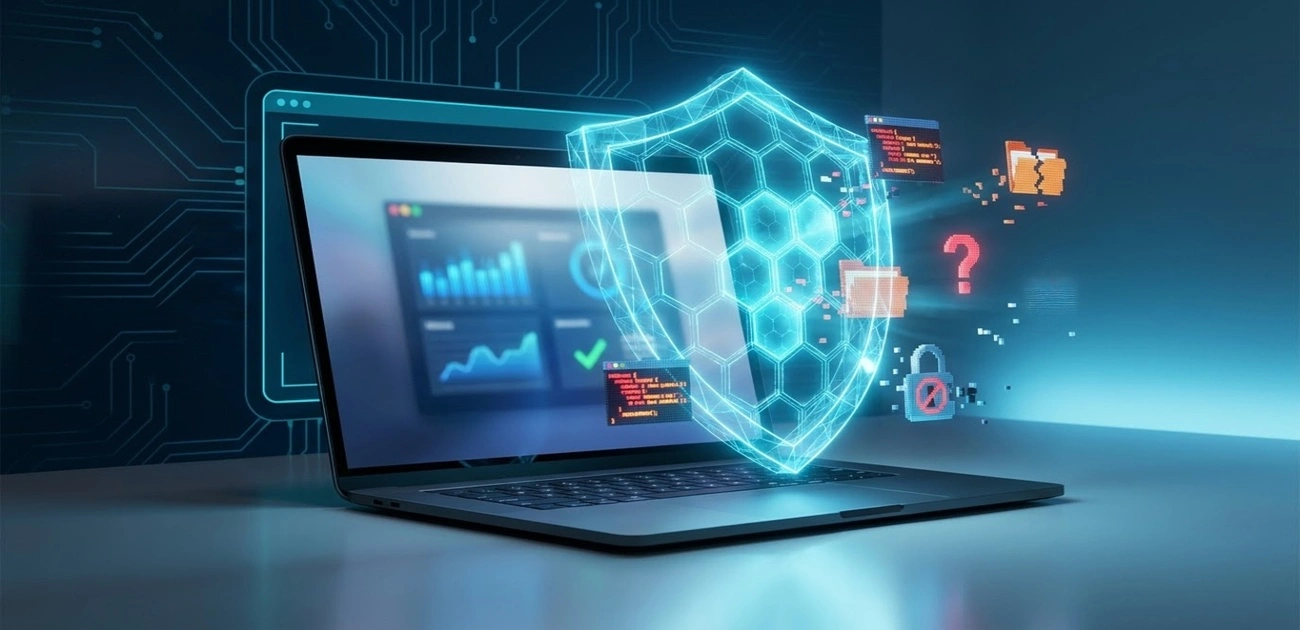
Understanding how can you prevent viruses and malicious code is essential for anyone who uses a computer, smartphone, or the internet today. A malicious program can steal personal information, damage files, monitor activity, lock important documents, or give an attacker unauthorized access to a device. The good news is that simple daily habits can make a major difference in keeping your systems safe.
A malicious program can steal personal information, damage files, monitor activity, lock important documents, or give an attacker access to a device. Sometimes the warning signs are obvious. Other times, a harmful program can stay hidden for a long time.
The good news is that you do not need to be a cybersecurity professional to reduce your risk. A few simple habits can make a major difference.
In this guide, we will explain how viruses and malicious code spread, how you can prevent them, and what you should do when something looks suspicious.
What Are Viruses and Malicious Code?
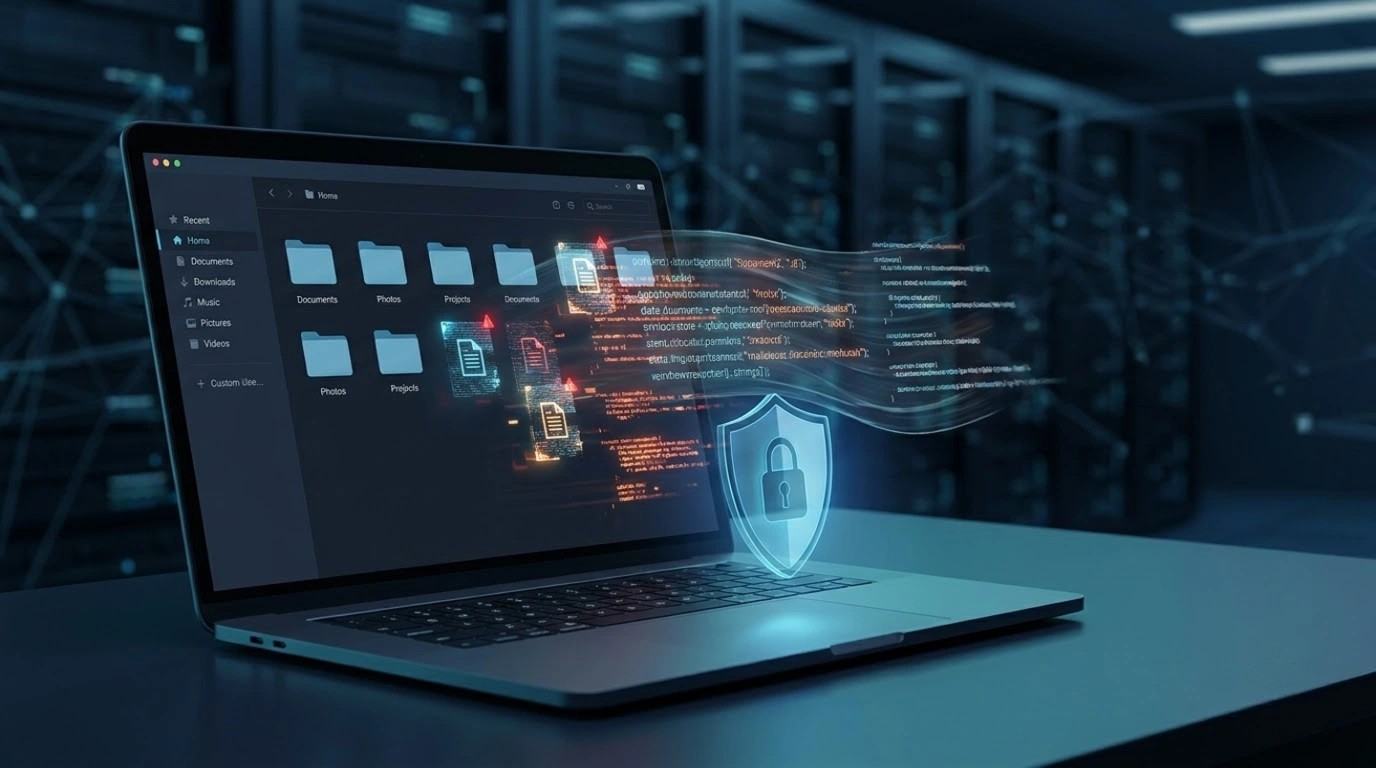
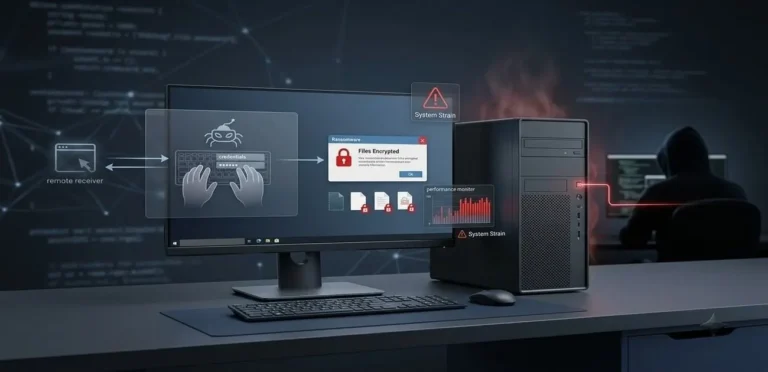
A computer virus is a type of harmful software designed to infect files or programs and spread from one place to another. A virus may cause files to become corrupted, slow down a computer, or create other problems.
Malicious code is a broader term. It includes any code that is created to perform harmful or unauthorized actions on a device or system. Learn what malicious code can do to a device and how infections spread.
This can include viruses, spyware, ransomware, trojans, worms, malicious scripts, and other types of malware.
For beginners, the important thing to remember is simple. You do not need to understand how every type of malware works. You need to recognize the common ways it reaches your device and learn how to avoid those situations.
Keep Your Operating System Updated
One of the easiest ways to improve security is to keep your operating system updated.
Software companies regularly release security updates when they discover vulnerabilities. Attackers can sometimes use these weaknesses to run harmful code or gain unauthorized access.
That is why an update is not always about adding a new feature. Some updates are specifically designed to fix security problems.
Keep Windows, macOS, Android, iOS, and other operating systems updated. Avoid postponing important security updates for weeks or months.
You should also update applications that you use regularly, especially web browsers, office software, media players, messaging apps, and other programs that connect to the internet.
An old application can become an easy target even when the rest of your device is protected.
Use Reliable Antivirus and Security Software
A reputable antivirus or security solution can help detect and block many common threats.
Modern security software can scan files, monitor suspicious activity, detect potentially harmful applications, and warn you about certain threats. For additional guidance, the Federal Trade Commission’s malware protection guide explains how to protect, detect, and remove malware.
For many beginners, the security tools already included with the operating system may provide a useful level of protection when they are properly configured and kept updated.
Avoid installing random antivirus programs from websites you do not trust. Some fake security applications are actually designed to scare users into downloading more malicious software.
Before installing security software, check the developer, download it from an official source, and make sure the product is legitimate. These beginner friendly cybersecurity tools can also help improve your overall protection.
Security software is useful, but it should not replace careful online behavior.
Be Careful With Email Attachments
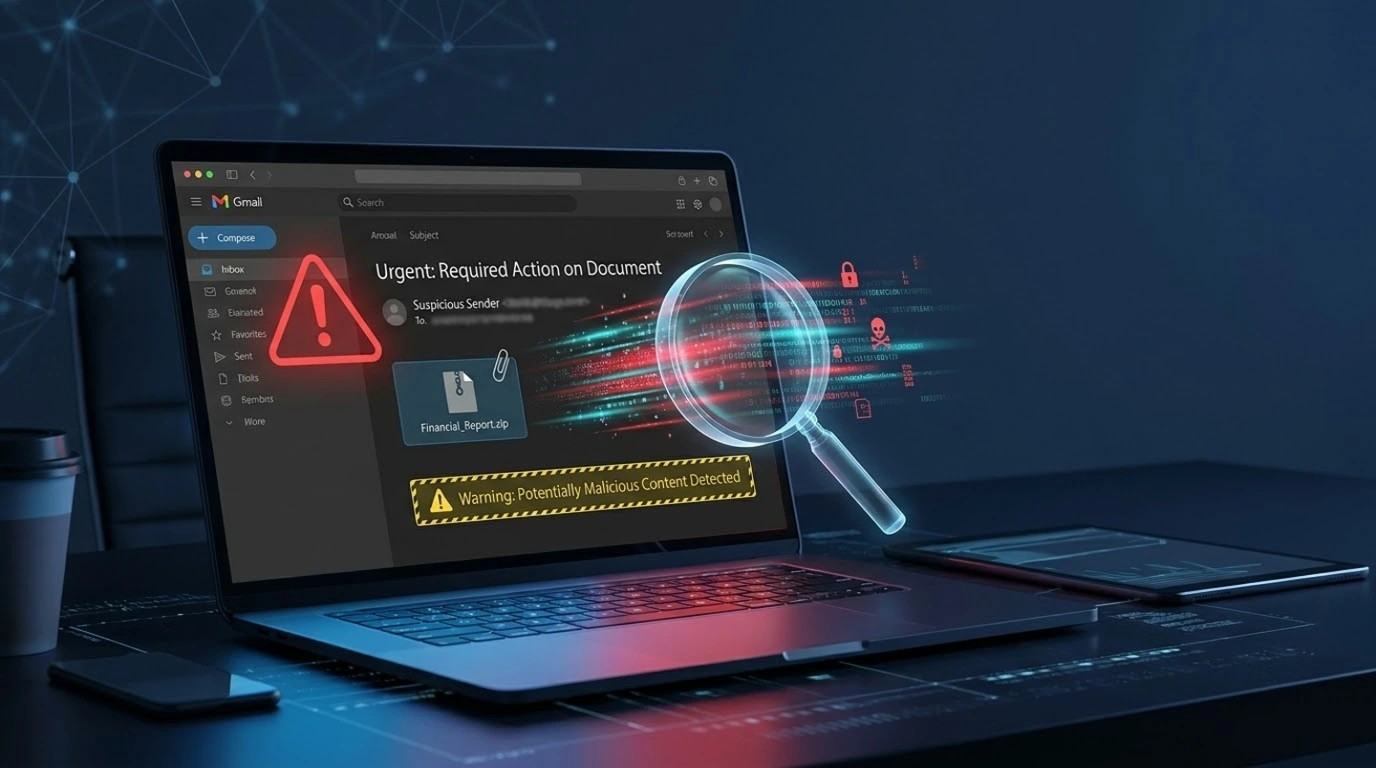
Email remains one of the most common ways attackers try to deliver malicious files.
A message may contain an attachment that appears to be an invoice, document, image, delivery notice, or other familiar file. The message may create urgency and encourage you to open it immediately.
Before opening an attachment, ask yourself whether you were actually expecting the file. Learn how phishing emails work and how to spot suspicious messages before clicking.
Check who sent the message and look closely at the email address. An attacker may use a name that looks familiar while sending the email from a completely unrelated address.
Be especially careful with unexpected executable files, scripts, compressed archives, and documents that ask you to enable unusual features.
When something feels strange, do not open it just because the message looks professional.
Think Before Clicking Links
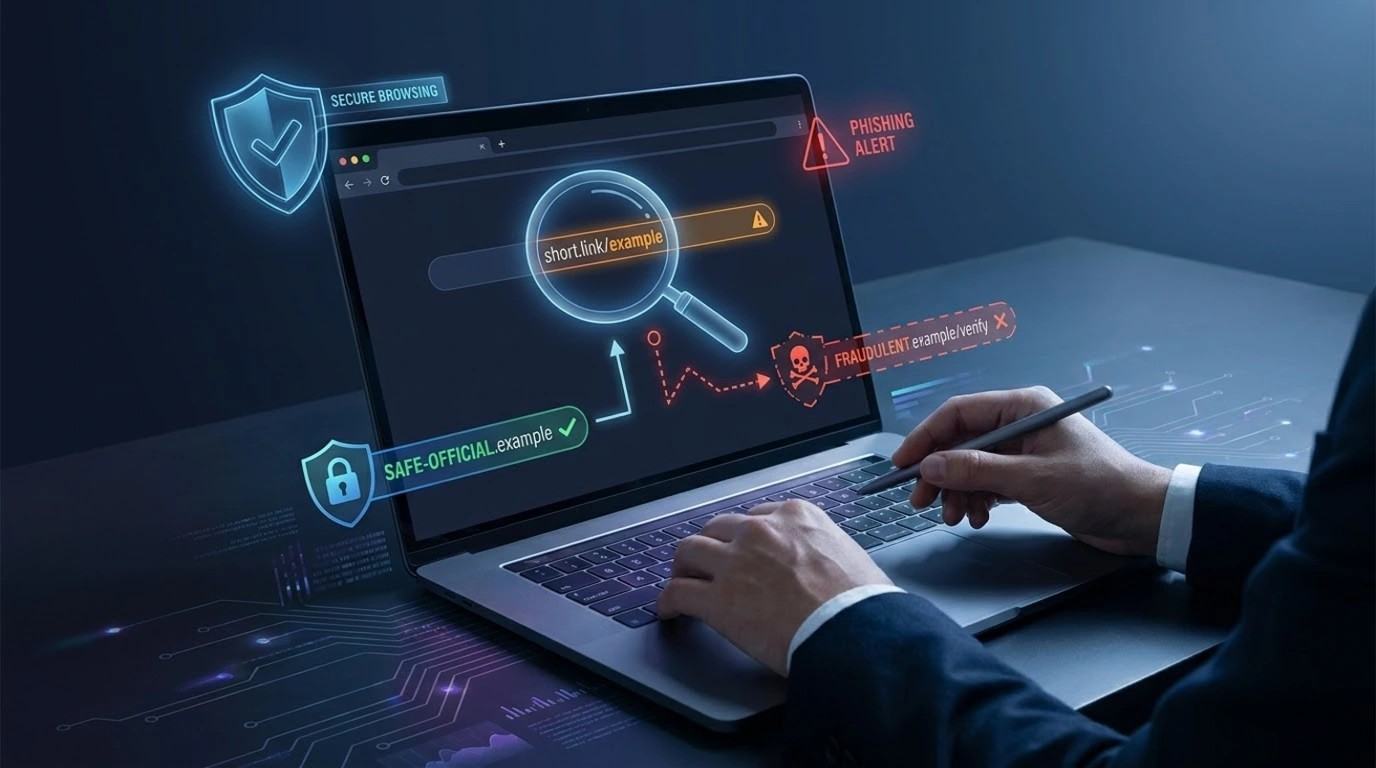
Not every dangerous attack starts with a file. Some begin with a simple link.
A malicious link can take you to a fake login page, a harmful website, or a page that attempts to exploit a browser or install unwanted software.
Before clicking, look at the destination of the link. On a computer, you can often move your mouse over a link to see where it leads.
Be cautious when a message asks you to urgently reset a password, verify an account, claim a prize, review a payment, or download an important document. Official CISA guidance on suspicious links and attachments also emphasizes taking time to verify requests before interacting with unfamiliar prompts.
One useful habit is to open the official website yourself instead of clicking a suspicious link in an unexpected message.
Download Software From Trusted Sources
Free software can be useful, but downloading programs from unknown websites can be risky.
Some unofficial download sites bundle legitimate programs with unwanted software. Others may distribute modified versions of applications that contain malicious code.
Whenever possible, download software from the official website or a trusted application store.
Be careful with programs described as cracked, unlocked, premium for free, or modified versions of paid applications. These files may look attractive, but they can come with serious security risks.
Saving money on software is not worth losing your personal data or having your files encrypted by ransomware.
Avoid Pirated and Cracked Software
Pirated software is a common source of security problems.
Attackers can modify an application and hide malicious code inside it. Because users expect the program to behave normally, they may give it access to important files or even disable security features to make it work.
Cracked software can also include password stealers, spyware, ransomware, or other unwanted programs.
Using legitimate software and keeping it updated gives you a much safer starting point.
Use Strong and Unique Passwords
Passwords do not directly prevent every virus, but strong account security can reduce the damage caused by an attack.
Use a different password for each important account. This is especially important for email, banking, cloud storage, social media, and work accounts. Learn how to create and manage strong passwords across all your personal devices.
A password manager can make this easier because you do not have to memorize dozens of complex passwords.
Whenever possible, enable multi factor authentication. This adds another verification step when you sign in.
Even if an attacker somehow gets your password, an additional security layer can make it much harder for them to access your account.
Be Careful With USB Drives and External Devices
Malicious files can also spread through external storage devices.
Do not connect unknown USB drives or other removable devices to your computer without a good reason. A device that was used on an infected computer may contain harmful files.
If you need to use an external drive, scan it with your security software first.
This is especially important when using USB devices from public places, unknown sources, or computers that you do not control.
Use Safe Browsing Habits
You do not have to be afraid of every website on the internet, but you should develop healthy browsing habits.
Pay attention to the website address and avoid suspicious pages that contain strange domain names, excessive popups, misleading download buttons, or aggressive warnings.
A website claiming that your computer has dozens of viruses should not automatically be trusted. Some websites use fake alerts to convince visitors to download a program or call a fake support number.
Your browser itself may also warn you when a website appears dangerous. Take those warnings seriously instead of immediately bypassing them.
Do Not Ignore Security Warnings
Security warnings are designed to help you make safer decisions.
If your browser warns that a website may be dangerous, stop and investigate.
If your operating system blocks an unknown application, do not immediately disable the protection just because the application is important to you.
If antivirus software detects a suspicious file, read the alert and understand what it is telling you.
Many infections happen because users repeatedly ignore warnings until something goes wrong.
A warning is not always proof that an attack is happening, but it is a reason to slow down and check what is happening.
Back Up Your Important Files
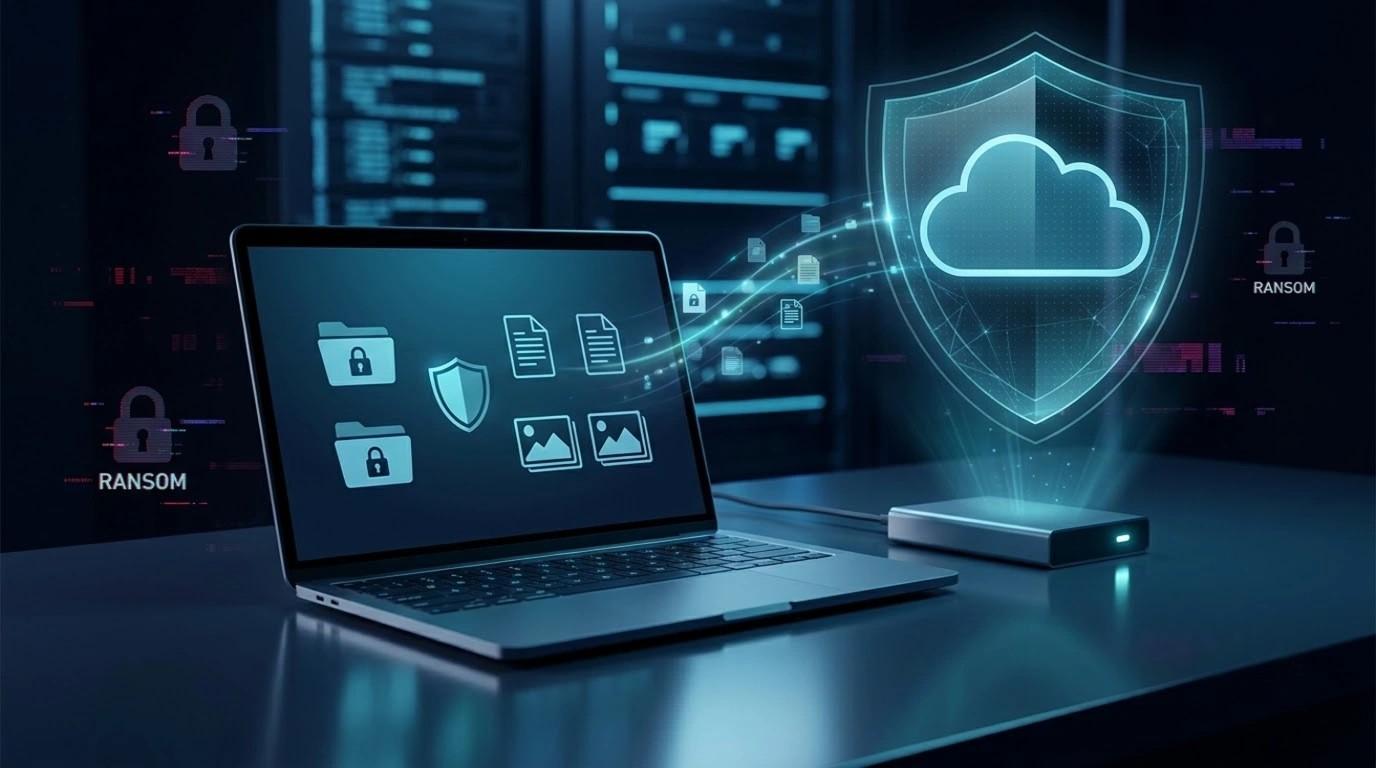
Backups are one of the most important parts of protecting yourself from malicious software.
Imagine losing your photos, documents, school work, or business files because ransomware encrypted them. Security software may stop some attacks, but no protection is perfect.
Keep important files backed up in a separate location. You can use a trusted cloud storage service, an external storage device, or another reliable backup method.
For very important information, having more than one backup can provide additional protection.
The key is to make backups regularly and make sure you can actually restore your files when needed.
A backup is only useful if it works when you need it.
Keep Your Browser and Extensions Under Control
Web browsers are frequently targeted because they are one of the main ways people interact with online content.
Keep your browser updated and review the extensions you have installed. You can also check your browser security and extensions regularly to ensure no malicious add-ons are running in the background.
Remove extensions that you no longer use or do not recognize. An extension may have access to information about websites you visit, depending on the permissions it receives.
Install browser extensions only from trusted sources and check what permissions they request.
If an extension suddenly starts showing unusual advertisements, redirecting websites, or changing your search settings, investigate it immediately.
Be Careful With Free Games, Tools, and Downloads
Attackers know that people love free software, games, utilities, templates, and media.
A file may look harmless because its name contains words such as setup, update, player, installer, or document.
However, the name alone does not prove that the file is safe.
Think about where you downloaded it, who published it, and whether the file makes sense for what you were trying to do.
Do not install programs simply because a website says your device needs them.
Teach Yourself to Recognize Suspicious Behavior
Cybersecurity is partly about technology, but it is also about decision making.
Before downloading or opening something, pause for a few seconds.
Ask yourself:
- Did I request this?
- Do I know the sender?
- Does the website look legitimate?
- Is the message trying to scare or rush me?
- Why is this program asking for these permissions?
- Would I normally trust this source?
These questions can prevent many common mistakes.
Sometimes the strongest security tool is simply taking a moment to think before clicking.
What Should You Do If You Think Your Device Is Infected?
If you believe your device may have malware, do not panic.
First, disconnect the device from the internet if you suspect that a malicious program is actively communicating with an attacker. This can help limit certain types of damage.
Next, use trusted security software to scan the device. Windows users can also use Microsoft Defender’s virus and threat protection to run security scans and review detected threats.
Remove suspicious programs or files only when you understand what they are. Deleting random system files can create additional problems.
Change important passwords from a separate, trusted device if you believe your credentials may have been stolen.
Check your accounts for unusual activity, especially email, banking, cloud storage, and social media accounts.
If the infection is serious or you cannot determine what happened, consider getting help from a qualified cybersecurity professional.
For important computers, keep evidence of unusual messages, alerts, and files before making major changes. This can help when troubleshooting the incident.
Common Mistakes Beginners Should Avoid
Many security problems are caused by a few simple habits.
Using the same password everywhere can allow one stolen password to put multiple accounts at risk.
Ignoring software updates can leave known security weaknesses unpatched.
Downloading programs from unknown websites can introduce unwanted software.
Clicking links without checking where they lead can expose you to phishing and malicious websites.
Disabling security tools because they interrupt a download can remove an important layer of protection.
Another common mistake is believing that antivirus software makes a device completely safe. Security software is helpful, but no single tool can prevent every attack.
A Simple Security Routine
You do not need to spend hours every day thinking about cybersecurity.
Create a simple routine:
- Keep your operating system and applications updated.
- Use reputable security software.
- Use strong and unique passwords.
- Enable multi factor authentication where possible.
- Download software only from trusted sources.
- Treat unexpected attachments and links with caution.
- Back up important files regularly.
- Review browser extensions and installed applications from time to time.
Most importantly, slow down when something feels unusual.
Final Thoughts
Preventing viruses and malicious code is not about being perfect or understanding every technical detail.
It is about building safer habits.
Keep your devices updated. Use trusted software. Be careful with links and attachments. Avoid suspicious downloads. Protect your accounts with strong passwords and multi factor authentication. Keep reliable backups of important data.
No single security measure can stop every threat. The best protection comes from combining several simple habits.
The next time you receive an unexpected file, see a suspicious link, or find a program asking for unusual permissions, do not rush.
Pause. Check. Think.
That small moment of caution can be enough to stop a much bigger problem.
Related guide: For broader context and related coverage, see our personal and small-business cybersecurity guide.
Frequently Asked Questions
How can I prevent viruses on my computer?
Keep your operating system and applications updated, use reputable security software, download programs only from trusted sources, and avoid opening unexpected email attachments or suspicious links. Regularly backing up important files can also reduce the impact of a malware infection.
What is the best way to prevent malware?
The best approach is to use multiple security habits together. Keep your software updated, use trusted security tools, avoid pirated or cracked software, be careful with downloads and links, use strong passwords, enable multi factor authentication, and maintain regular backups.
Can antivirus software completely protect my device?
No. Antivirus software can detect and block many common threats, but it cannot guarantee complete protection against every attack. Safe browsing habits, software updates, secure passwords, careful downloading, and regular backups are also important.
Can downloading free software cause a virus?
Yes. Software downloaded from unknown or unofficial websites may contain malware or unwanted programs. Download applications from official websites or trusted app stores, and be especially careful with cracked, modified, or illegally distributed software.
What should I do if I think my device has malware?
If you suspect an infection, disconnect the device from the internet when appropriate, run a scan with trusted security software, and check for unusual account activity. If you believe your passwords or credentials may have been exposed, change them from a separate trusted device. For serious infections, consider getting help from a qualified cybersecurity professional.