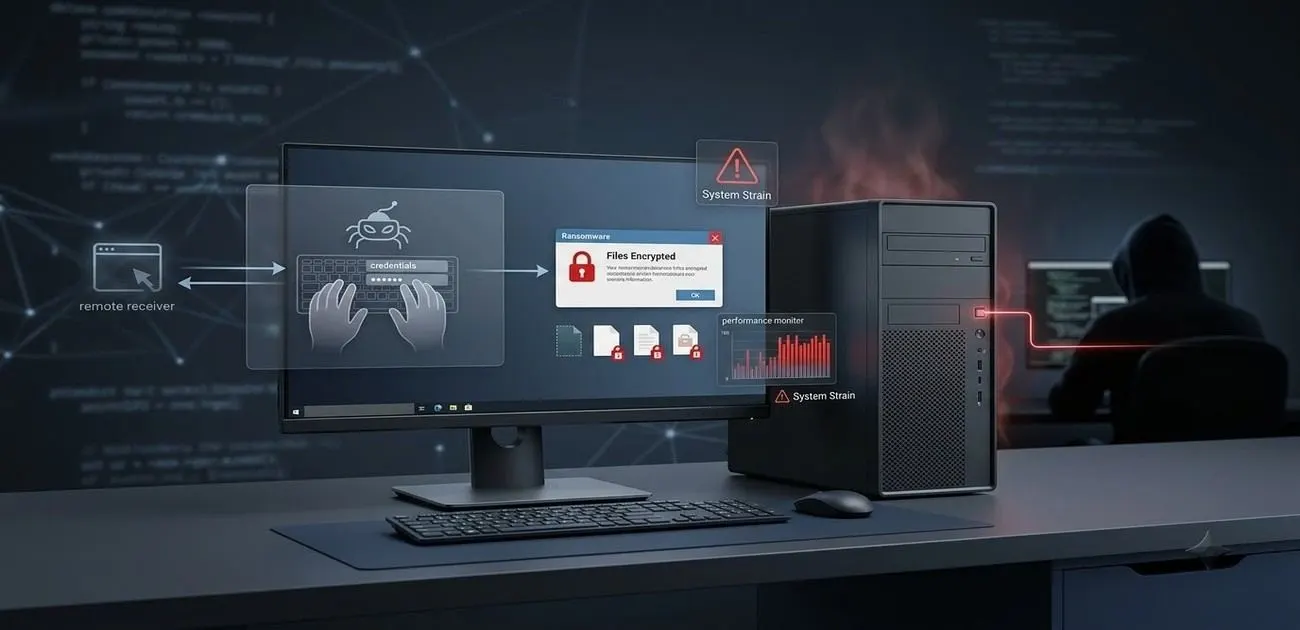
Malicious code damages computers by stealing information, encrypting files, changing system behavior, opening unauthorized access, or consuming computing resources. The tricky part is that some attacks are obvious, while others run quietly in the background and give you little more than a sudden performance problem as a clue.
A ransomware attack might leave files locked and display a ransom note. A keylogger can record what you type without changing the screen. A resource-abusing infection can make an otherwise idle computer run unusually hard.
So, how can malicious code do damage? The answer starts with what happens after the code gets executed.
What actually gives malicious code the power to hurt a computer?
Malicious code does not need a special kind of “evil access.”
It runs through a process, application, account, script, or system component. The permissions available to that process determine what it can read, change, execute, or send over the network. That is why limiting user and application privileges matters: a compromised process has fewer options when it does not have unnecessary access.
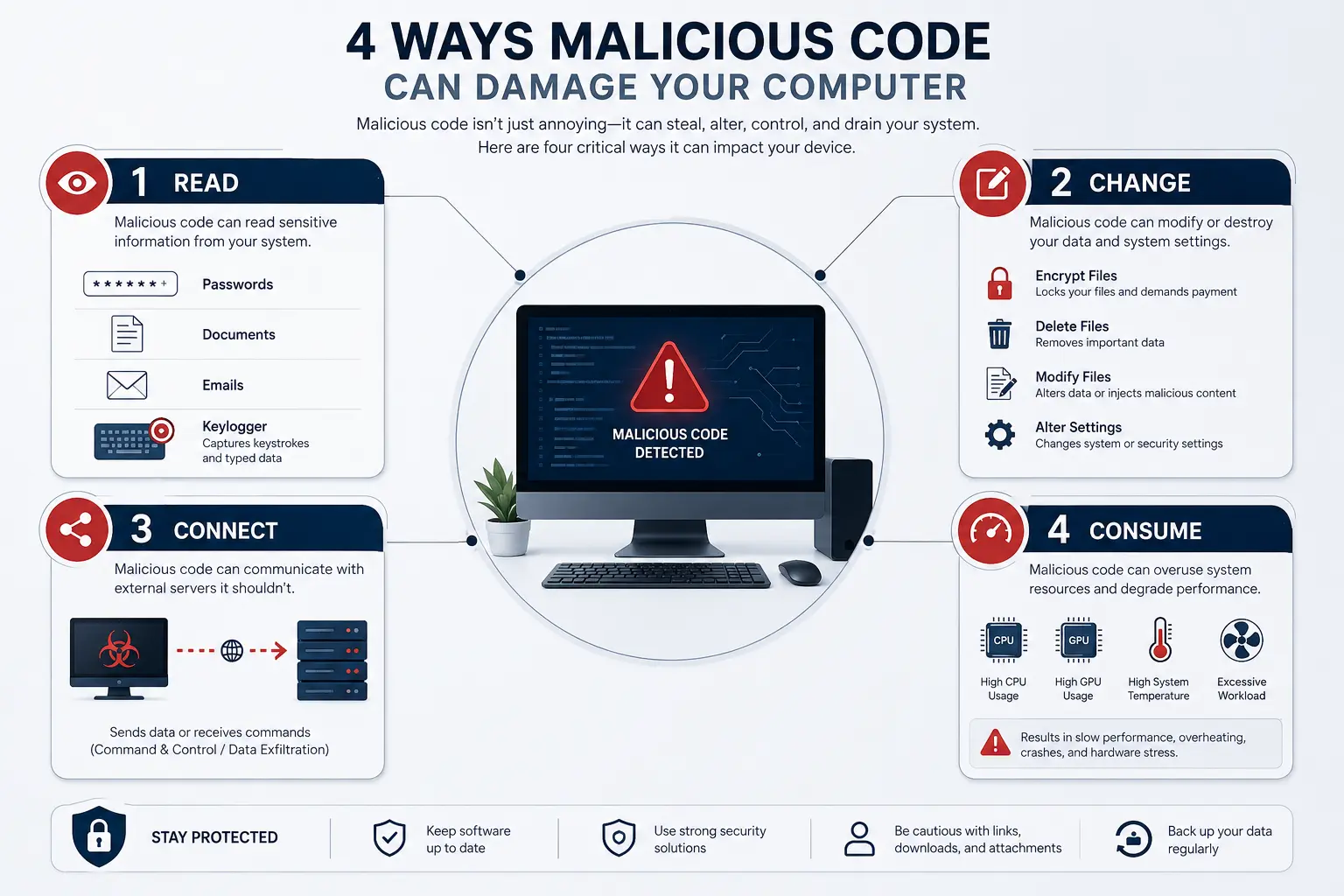
For everyday users, the easiest way to understand the impact is to ask four questions:
What can it read? What can it change? Where can it connect? What resources can it consume?
Those four questions explain most of the damage people actually experience. For a basic introduction to malware and the security risks it creates, see our guide on Those four questions explain most of the damage people actually experience.
How can malicious code damage your files and data?
It can steal what you type or store
Spyware and keyloggers are built around observation rather than destruction. A keylogger records keystrokes, which can expose usernames, passwords, messages, and other sensitive information. CISA has documented software keyloggers as tools that capture keyboard events before they reach the intended application.
That is a nasty type of compromise because the computer may continue to work normally.
You can reinstall Windows. You can replace a hard drive. But a password that has already been captured needs to be changed, and any account using that password needs to be treated as potentially exposed. To see how silent stealth threats mimic benign software to harvest credentials, read our breakdown on what is spyware and behavioral surveillance malware.
It can encrypt files and stop you working
Ransomware is the clearest example of malicious code turning access into disruption.
The malware encrypts files so the victim cannot use them, while the attacker demands payment for recovery. Some ransomware incidents also involve data theft before or alongside encryption, which gives attackers another pressure point.
Backups are one of the strongest defenses here, but only when the backups are protected from the same incident. CISA recommends regular backups, verifying that they can be restored, and keeping backups separated from the systems they protect. For a practical look at ransomware defense and recovery, see our ransomware defense and recovery guide.
A backup that ransomware can reach and encrypt is not much of a backup during an active attack.
It can give an attacker continued access
Some malicious programs are designed to establish persistence or provide remote access after the initial compromise.
That access can become a launch point for additional malicious activity. An attacker may use the compromised system to steal credentials, install other malware, change settings, or move toward other systems that the account is allowed to reach.
This is why “nothing was deleted” does not automatically mean “nothing happened.”
A computer can look normal while an unauthorized process is doing work in the background.
It can consume your computer’s resources
Malicious code can also abuse CPU or GPU resources for activities such as unauthorized cryptocurrency mining. Microsoft has documented cloud cryptojacking activity in which attackers abuse compute resources for mining, while Microsoft Defender for Cloud continues to flag suspicious GPU-related activity associated with cryptojacking.
For a regular user, the important clue is not the cryptocurrency itself. It is the unexplained resource usage.
A machine that suddenly runs hot, spins its fans harder, or stays unusually busy while you are doing almost nothing deserves a closer look.
Which of the following may indicate a malicious code attack?
No single symptom proves that a computer is infected. A browser bug, software update, failing hardware component, or overloaded application can cause similar behavior.
But sudden, unexplained changes deserve investigation.
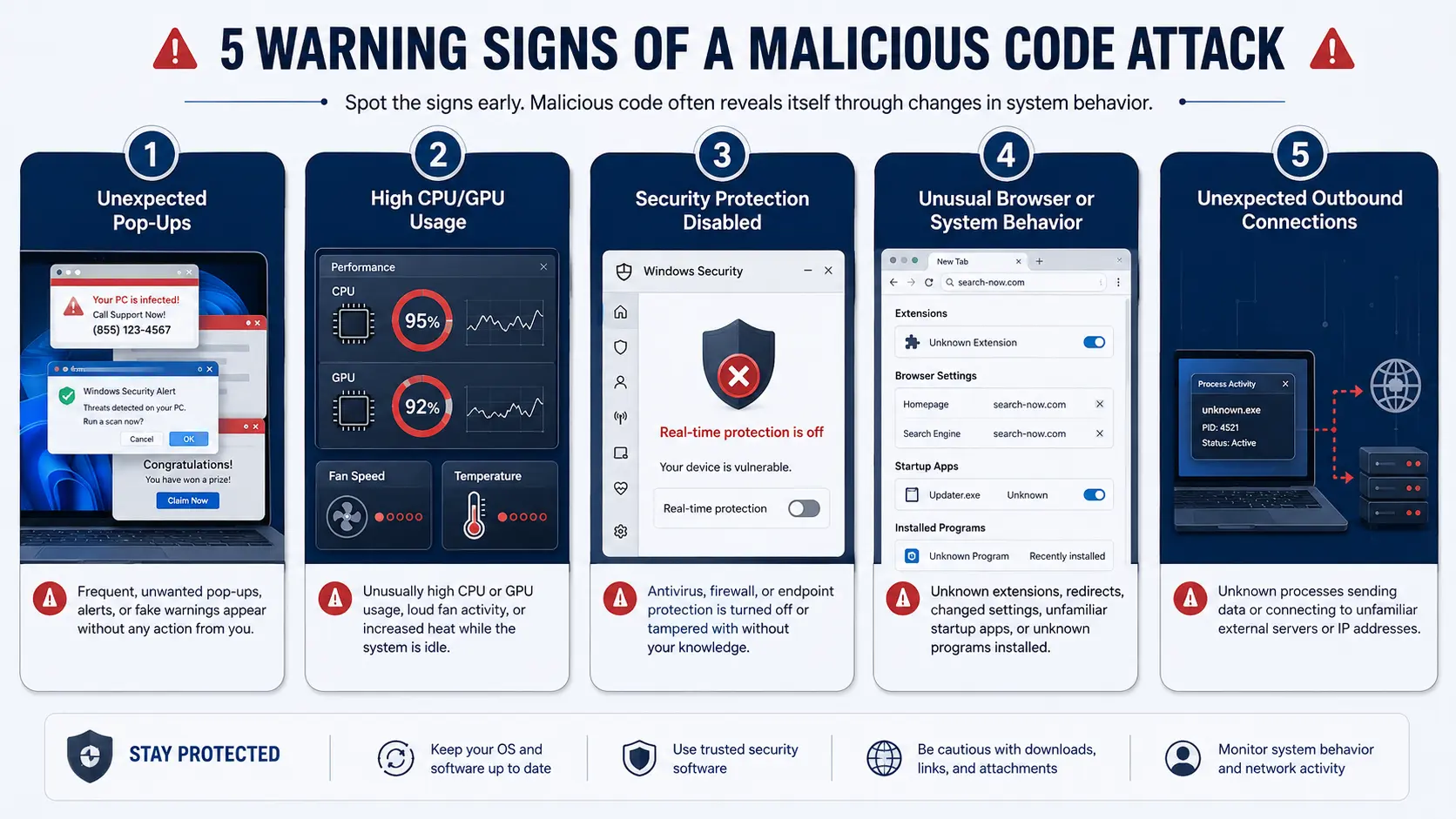
1. Unexpected pop-ups appear
Repeated pop-ups, fake security warnings, or browser tabs opening without your action can point to unwanted or malicious software.
Be especially suspicious when a pop-up tells you to call a phone number, download a “cleaner,” or click a button to remove an infection you were never told existed.
2. CPU or GPU usage stays unusually high
An idle computer should not normally behave like it is performing a demanding workload for no clear reason.
Check Task Manager or your system monitor. Look for processes consuming an unusual amount of CPU, GPU, memory, or disk activity.
This is not proof of malware. It is a useful clue that something deserves checking.
3. Antivirus or security protections are disabled unexpectedly
If Windows security features or antivirus protection suddenly stop working and you did not make the change, investigate.
Malware may attempt to weaken security controls so that other malicious activity becomes harder to detect.
4. Your browser or system starts behaving differently
Examples include unexplained extensions, changed browser settings, redirects, new startup entries, or programs appearing that you do not remember installing.
The key word is unexplained.
A change that follows software you intentionally installed is different from a change that appears out of nowhere.
5. Your computer makes unexpected outbound connections
Most users never inspect network connections, but unexpected communication from an unfamiliar process can be an important security signal.
Malware may need external communication to receive instructions, send stolen information, or retrieve additional components. In an investigation, unusual outbound traffic is therefore worth examining rather than ignoring.
A useful rule is:
One strange symptom is not a diagnosis. Several unexplained changes appearing together are a reason to investigate immediately. For a practical device check, use our device security audit guide. If you need a step-by-step diagnostic workflow, review our guide on how to detect malware and suspicious system behavior on Windows.
Why can malicious code be difficult to notice?
The most dangerous infection is not always the one that causes the biggest visible mess.
Some malicious code runs with no obvious graphical warning. A background process or script can execute while you continue browsing, working, or checking email.
That is one reason performance changes matter.
In endpoint investigations, silent background execution can leave throttling, unusual resource use, or unexpected process activity as the first visible clue. The screen can look completely normal while something else is happening underneath it.
This is also why trusted software deserves attention. A compromised application, browser extension, or software component can execute malicious behavior using the permissions already granted to it.
For home users, the practical response is simple: be selective about what you install and what you allow to run. You can audit installed add-ons with our guide on browser security and extension hijacking.
Which of the following is true about compressed URLs?
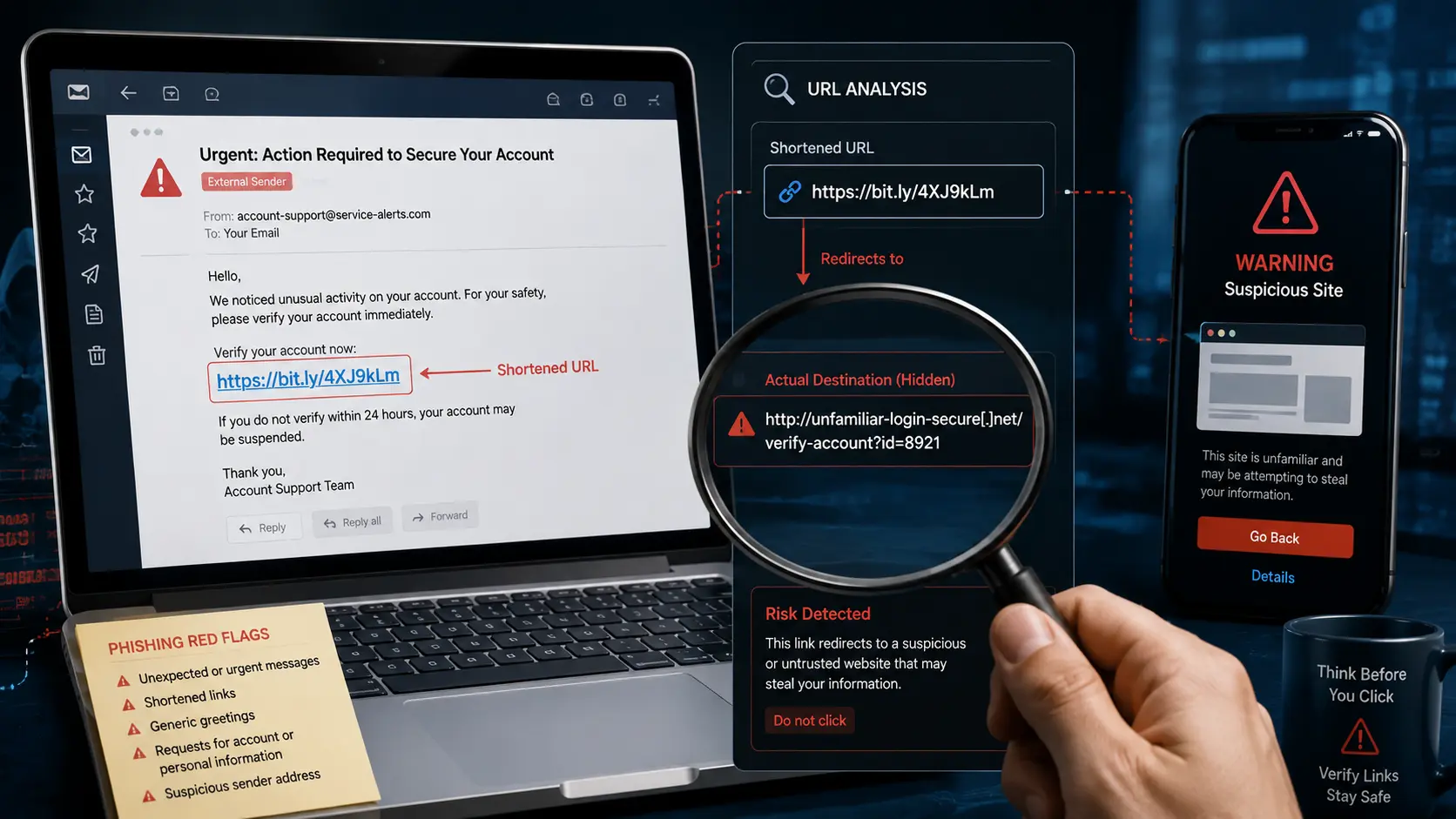
The security problem with a compressed or shortened URL is that it can hide the final destination.
That makes it harder to judge a link before opening it.
This matters in phishing and spear-phishing campaigns. Microsoft has documented attacks in which URL-shortening services and multiple redirects were used to obscure attacker-controlled infrastructure before the victim reached the final destination.
So if an unexpected email or message contains a shortened link, do not treat the visible URL as proof that the destination is trustworthy. Verify the sender and destination through another route when the message asks you to sign in, open an important document, or provide sensitive information. You can reinforce your verification habits by reading our tutorial on how to spot a phishing email and credential harvesting scam.
What is a risk to government posed by removable media?
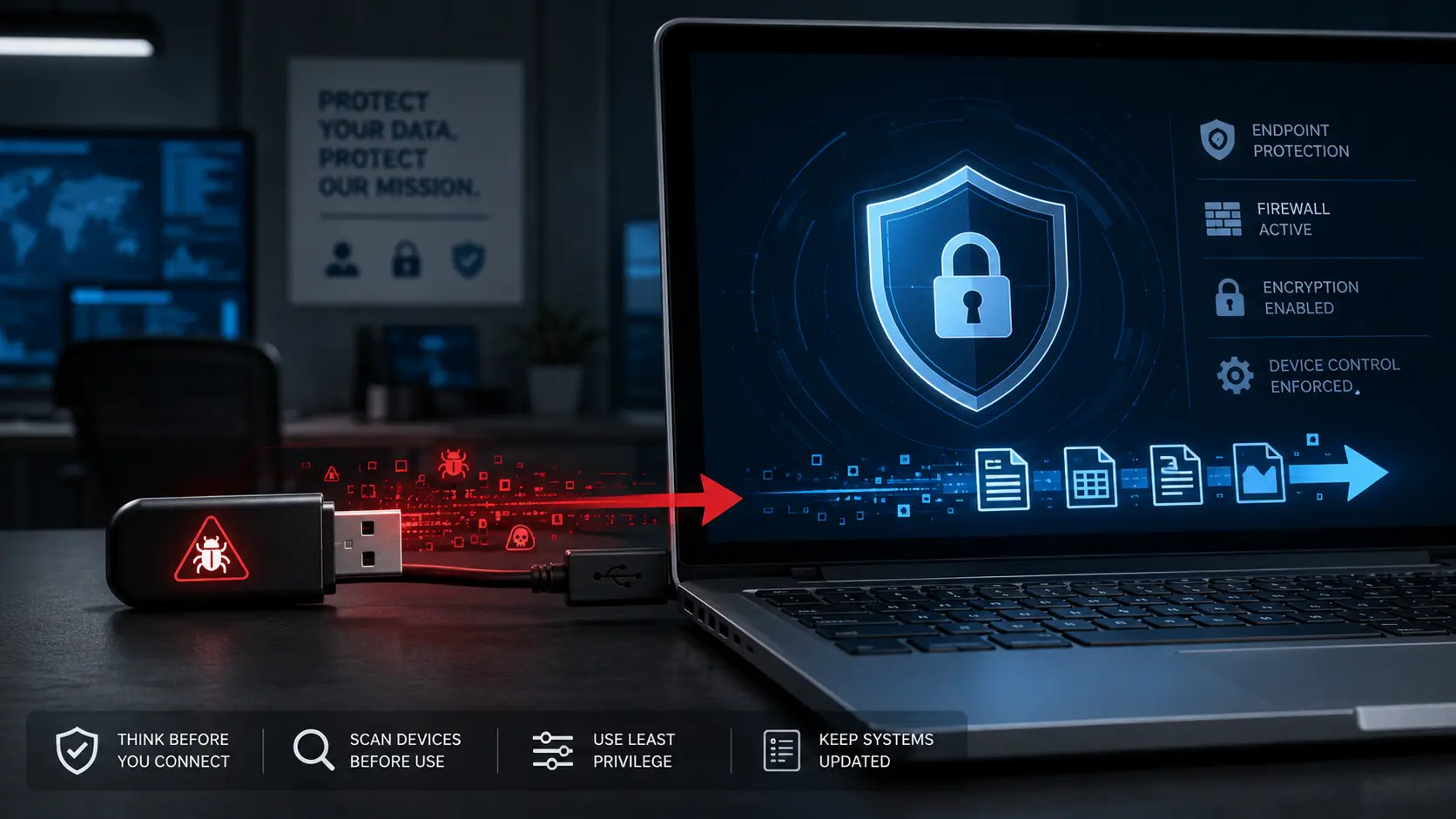
USB drives and other removable media create two separate problems: they can bring malicious code into a system and they can carry sensitive information out of it.
DoD Cyber Awareness material identifies removable media as a risk for introducing malicious code and for compromising confidentiality, integrity, and availability, including the risk of classified-information spillage.
CISA has also documented attack scenarios involving removable media and malware introduction. The bigger lesson is easy to remember:
A USB drive is not just storage. It is another route into the computer.
That is why government and enterprise environments place controls around removable devices rather than treating every USB stick as harmless.
Do not connect an unknown drive to a sensitive computer simply because someone hands it to you.
Does it pose a security risk to tap your smartwatch?
A smartwatch tap is not automatically dangerous. But contactless technology still has security considerations.
NFC is a short-range wireless technology used in mobile payment systems and other applications. NIST documents NFC relay attacks, where an attacker can relay communication between two parties, and recommends controls such as requiring user authorization before a transaction is completed.
NIST also identifies malicious NFC tags as a threat because they can redirect users to malicious websites or applications.
For normal users, the practical rule is not “never tap your watch.”
It is: approve only transactions you recognize, keep devices and apps updated, and do not blindly follow unexpected NFC prompts or links. For another example of short-range wireless attack risks, see our Bluetooth security audit and Bluebugging guide
How can you prevent virus and malicious code?
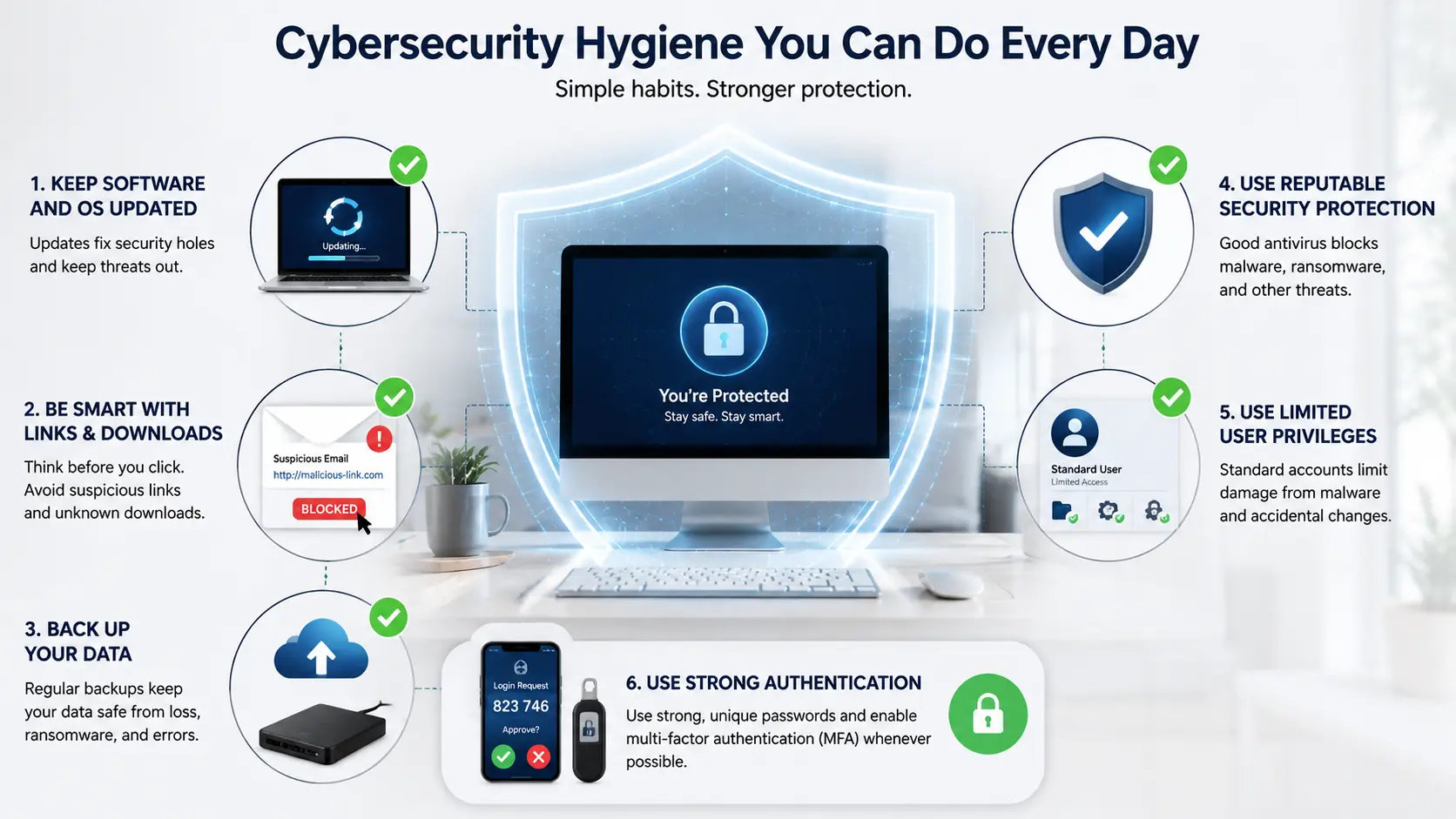
Start with the controls people sometimes ignore because they are boring.
Keep your operating system, browsers, applications, and security software updated. Patches remove known weaknesses that attackers can exploit.
Use reputable antivirus or endpoint protection, and do not disable security controls just because an unfamiliar installer or website tells you to.
Be careful with email attachments, links, downloads, browser extensions, and removable media. A large part of malware prevention comes down to refusing unexpected execution opportunities.
Back up important files. For ransomware protection, keep backups separated from the systems they protect and test that you can actually restore them. CISA specifically recommends protected backups and recovery testing.
Use standard user accounts for everyday work where practical, rather than giving every application administrator-level access.
And pay attention to changes.
A computer that suddenly becomes slow, hot, noisy, or busy at idle may have a perfectly normal software problem. It may also be giving you the first clue that something unwanted is running. For beginners building a basic security setup, see our guide to cybersecurity tools for beginners.
How can you protect your home computer? DoD Cyber Awareness basics
For the Cyber Awareness-style question “How can you protect your home computer?”, the exact answer depends on the choices provided.
The safe fundamentals are straightforward: install security updates, use legitimate security software, maintain firewall protection, use strong authentication, and keep reliable backups.
Do not treat one antivirus program as your entire security strategy.
Patch the system. Protect the endpoint. Limit unnecessary privileges. Back up important data. Be cautious with links, attachments, downloads, and removable media. For a complete system hardening routine, follow our home computer security checklist and device audit.
What should you do if you suspect an infection?
Do not start deleting random Windows files or installing several questionable “PC cleaner” programs.
First, stop using the suspected computer for sensitive activity. Do not enter another important password into a machine you believe may be compromised.
If the device is connected to a business or organizational network, isolate it according to your incident-response procedure and contact IT or security staff. CISA recommends isolating infected systems during ransomware incidents to reduce the chance of further spread.
For a personal computer, use trusted security software and follow the vendor’s recovery instructions.
Keep useful evidence when possible: suspicious emails, filenames, security alerts, timestamps, or screenshots can help determine what happened.
Speed matters.
The sooner suspicious activity is recognized and contained, the less opportunity malicious code has to steal information, encrypt files, spread, or maintain access.
The easiest way to remember how malicious code causes damage
You do not need to memorize every malware family.
Ask four questions instead.
What is it reading?
That points toward spyware, credential theft, or data collection.
What is it changing?
That points toward file encryption, corruption, unauthorized settings changes, or destructive activity.
Where is it connecting?
Unexpected external communication can point toward command-and-control activity or data exfiltration.
What is it consuming?
Unexplained CPU or GPU use can point toward resource abuse, including cryptojacking.
That is much more useful than memorizing malware names.
Malicious code becomes dangerous when ordinary computer capabilities—running programs, reading data, changing files, using the network, and consuming resources—are turned against the user.
Watch the behavior, not just the label.
Related guide: For broader context and related coverage, see our personal and small-business cybersecurity guide.
Frequently Asked Questions
How can malicious code do damage?
Malicious code can steal sensitive information, encrypt or damage files, give attackers unauthorized access, change system behavior, or consume CPU and GPU resources. Some malicious activity is obvious, while other infections run quietly in the background.
Which of the following may indicate a malicious code attack?
Warning signs can include unexpected pop-ups, unusually high CPU or GPU usage, disabled antivirus or security protections, unexplained browser or system changes, and unexpected outbound network connections. A single symptom does not prove an infection, but several unexplained changes together deserve investigation.
How can you prevent virus and malicious code?
Keep your operating system, applications, browsers, and security software updated. Use reputable antivirus or endpoint protection, be cautious with links and downloads, avoid unknown removable media, use standard user accounts where practical, and maintain protected backups.
Which of the following is true about compressed URLs?
A compressed or shortened URL can hide the destination address, making it harder to judge where the link will take you before opening it. Attackers can use shortened URLs and redirects in phishing campaigns to obscure malicious destinations.
What is a risk to government posed by removable media?
Removable media can introduce malicious code into a system and can also be used to transfer sensitive information out of it. This is why government and enterprise environments commonly place strict controls on USB drives and other removable devices.